View - Drawing Tools
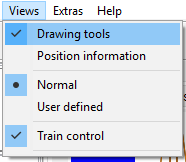
The tool window contains tools for editing polygons, poles, and texts. It also supports changing the drawing order of elements and grouping of element (tracks can not be grouped)
Overview
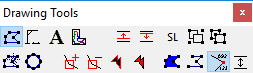
- Selects the polygon tools ().
- Selects the pole tools ().
- Selects the text tools().
- Opens the table creation window
-
Moves the selected elements one up (i.e. the will be painted later on top of previously painted elements). Keeping the
ctrl pressed while clicking the icon moves the selected elements all the way to the front. -
Moves the selected elements one down (i.e. the will be painted earlier and maybe overpainted by later painted elements) Keeping the
ctrl pressed while clicking the icon moves the selected elements all the way to the back. - Sorts the drawing order according to height.
- Groups the selected elements. (Module elements like track elements can not be grouped)
- Ungroups the selected group.
Polygons
The polygon tools contain the following functions:
- Creates a new polygon.
- Creates a new polygon with a given number of points.
- Adds an additional point to the selected polygon. After clicking the symbol, click near the line segment where you want to insert the point.
- Deletes an point in the selected polygon. After clicking the symbol, click the point that should be deleted.
- Changes the contour color of the selected polygon.
- Changes the filling color of the selected polygon. (Make sure the polygon is set to be filled )
- Indicates/defines if the selected polygon is to be filled.
- Indicates/defines if the polygon is supposed to be closed
- Indicates/defines if the selected polygon should show edge measures.
- Gives the polygon a thickness (in the third dimension).
Poles
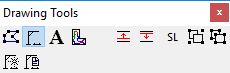
- Adds a new pole.
- Defines how a new pole looks.
Texts
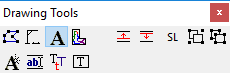
- Adds a new text.
- Edits the selected text. To select a text, click on the tiny tick on top left of it.
- Changes the size of the selected text. To select a text, click on the tiny tick on top left of it.
- Makes the names of track elements movable. Names of track elements can be turned on via the context menu.
Hint: Depending of the zoom factor of the view, small texts might not be show. Texts can also be globally turned off in the plan settings tab.