Extras - Administrate Modules
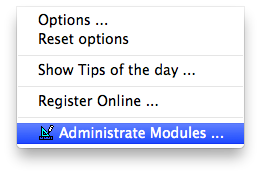
The module editor allows to create and modify track elements. The "Extras / Administrate modules" menu point is only available directly after the program start.
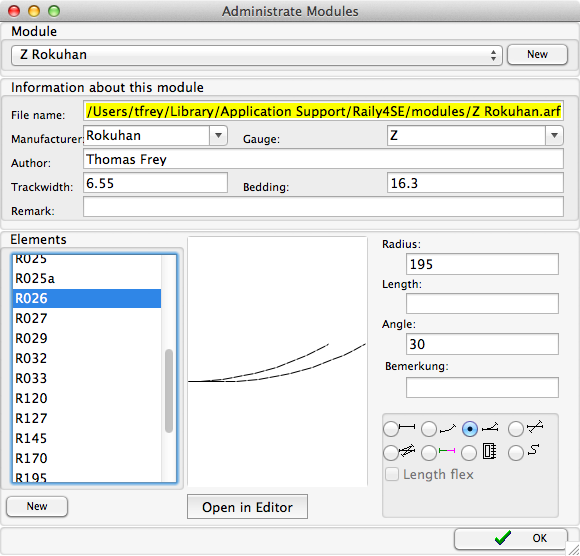
Select or Create a Module
On top of the dialog window you can either choose an existing track module or use the buttonGeneral Information
Below the module selection bar you find a number of fields with information about the track module:- Manufacturer
- Gauge
- Author
- Track width
- Bedding width
- Remarks
Manufacturer and Gauge are important for filtering the module in the module selection. Track width and the bedding width are important for displaying.
Selecting or Creating Track Elements
Below the general information, you find a list of track elements that are defined in the module.. The buttonEditing Track Elements
If an element is selected in the list, its basic information will and a preview will be shown if available:- Radius
- Length
- Angle
- Remark
- Type of the element
Hint: If length/radius/angle and element type are filled in before the editor is opened the first time with the button
The button